The AgentSmith app puts your agent on your phone, so you can chat with it, send it photos, files and voice messages, and answer when it needs your OK. Setup takes about five minutes, and you sign in with the same email and password as your Command Center.
The app isn't on Google Play, so you download it from us, and Android asks for one extra permission the first time. It needs Android 7.0 or newer. On an iPhone or iPad, use the web app in Safari instead.
The app is invite only. It works for AgentSmith clients once we've connected their agent to it, so if you're a client and would like it, email [email protected] and we'll send you an invite.
About 14 MB. The link always gives you the newest version.
Reading this on a computer? Scan the code with your phone's camera to download the app there.
1Download the app
Open this page on your Android phone and tap Download for Android. If you're reading it on a computer, scan
the QR code above with the phone's camera instead.
Chrome warns about every app file that doesn't come from Google Play, so it may ask whether you want to keep the
file. Tap Download anyway, or OK on older versions of Chrome.
If you opened the link inside WeChat, tap the ··· menu and open the page in your
browser first, because WeChat won't download app files.
2Install it
When the download finishes, tap the notification, or open Downloads from your browser's menu, then tap the
AgentSmith file and tap Install.
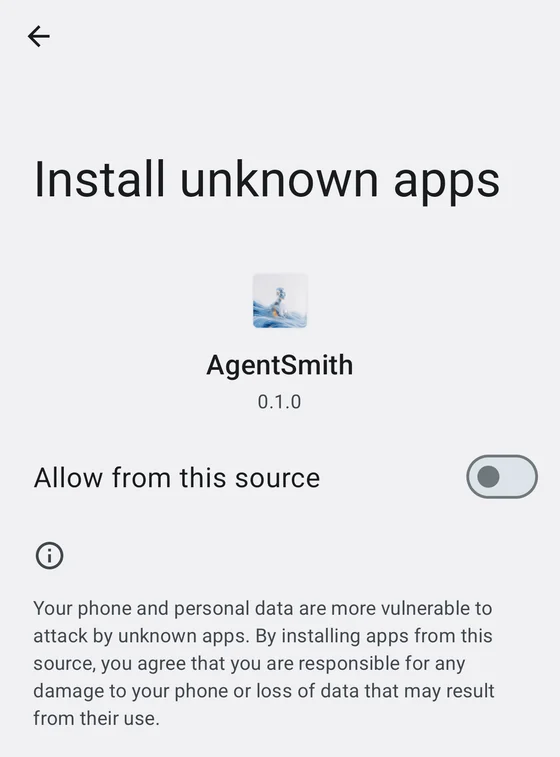
The first time, Android says your phone isn't allowed to install unknown apps from this source. Tap
Settings, turn on Allow from this source, then go back and tap Install. The switch only covers
the browser you downloaded with, and you can turn it off again once the app is in, because the app's own updates use
a separate permission (step 6).
Google Play Protect may offer to scan the app, or say it doesn't know the developer, because the app doesn't come
from Google Play. Let it scan if it asks, and if it shows a warning, tap More details and then
Install anyway.
Xiaomi, OPPO, vivo and Huawei phones
Xiaomi, Redmi, OPPO and vivo phones often show their own security screen before the install, sometimes with a
countdown of a few seconds. Wait for it, confirm you understand the risk if it asks, and carry on.
On a Huawei phone, Pure Mode blocks apps from outside the phone's own app store. Search the phone's Settings
for Pure Mode, turn it off, and install again.
Huawei phones on HarmonyOS NEXT (HarmonyOS 5 or later) can't install Android apps at all. On those phones, use
the web app in the browser.
3Sign in
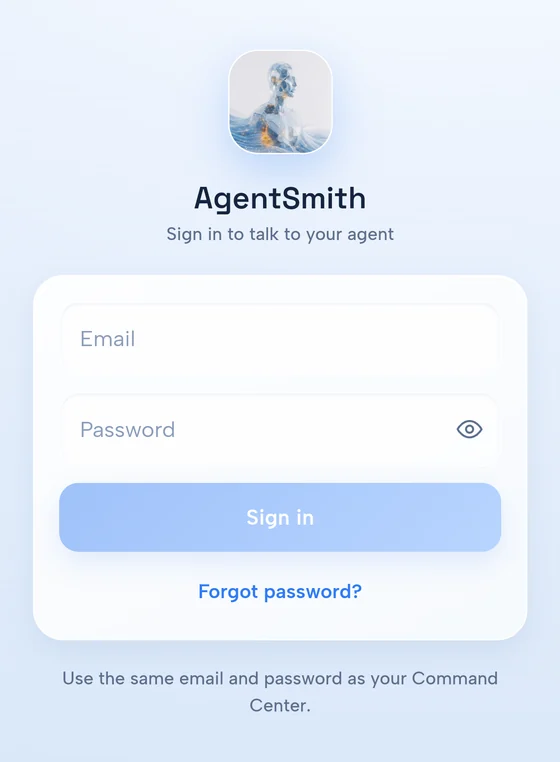
Open AgentSmith and sign in with the email and password you use for your Command Center. You stay signed in after
that, including through updates.
The sign-in screen. It's the same login as your Command Center.
If you've forgotten your password, tap Forgot password? and the app opens a page in your browser where
you can reset it.
If the app says your agent is still being set up, your agent isn't connected to the app yet. That part is on
our side, so email [email protected] and we'll connect it.
4Notifications and permissions
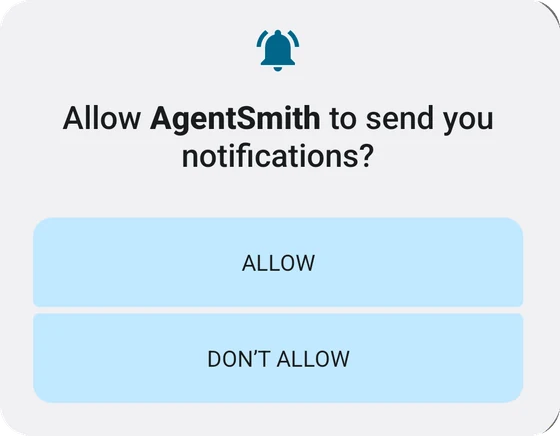
Right after you sign in, Android asks whether AgentSmith can send you notifications. Tap Allow, because
that's how you find out your agent has replied or needs your OK. Phones on Android 12 or older don't ask, and allow
it already.
Tap Allow here.
While you're signed in, the app keeps a quiet notification that says Connected to and your agent's name. It
holds the link to your agent open so messages reach you when the app is closed, so leave it there.
Everything else is asked for only when it's needed.
The camera is asked for the first time you take a photo in the app.
The microphone is asked for the first time you record a voice message.
Location and calendar start on Ask. The first time your agent wants one of them, the app tells you what
it wants and why, and then Android asks for the permission.
You can change these any time in the app's Settings, in the section about what your agent can use on this
phone. Ask means it checks with you first, On means it can use it when it needs to, and Off means
never. Adding an event to your calendar always asks you, whatever the setting.
5Keep notifications coming
Don't skip this step
Android phones close apps in the background to
save battery, and when that happens your agent's messages stop arriving until you open the app again. On a Xiaomi
phone in our tests, with the default battery setting, the link dropped about 12 minutes after the screen went
off.
Open the app's Settings and find Keep notifications coming.
If it says your phone may stop notifications when the app is closed, tap Fix, allow it on the screen
that opens, and come back to the app. Once it says your phone won't stop them to save battery, this part is
done.
One more step on some phones
Xiaomi, Redmi, POCO, Huawei, Honor, OPPO, realme, OnePlus, vivo and iQOO phones have their own battery rules on top
of Android's, so the app shows an extra card for them under Keep notifications coming.
Tap Autostart and turn it on for AgentSmith.
Tap Battery saver and choose No restrictions.
On a Samsung phone the card has one button. Tap Battery saver and add AgentSmith to
Never sleeping apps.
The names of these screens change from one phone model to the next. If a button opens the wrong screen, go to the
phone's Settings, then Apps, then AgentSmith, and look for the battery and autostart options
there.
6Updates
The app updates itself, so when a new version is out, a card in the app says it's ready, you tap Update,
and Android asks you to confirm the install. You stay signed in, and your conversations stay with your agent.
The first time, Android asks you to let AgentSmith install apps. Turn on Allow from this source, come back
to the app and tap Update again, and you only do this once.
The first update asks you to let AgentSmith install its own updates.
Before it installs anything, the app checks the download against the version we published, so if the file was
damaged or changed on the way, it installs nothing and tells you. To look for a new version yourself, open
Settings and tap Check for updates near the bottom. What changed in each version is on the
App updates page.
Worth setting up
Home-screen widget. In Settings, under Home-screen widget, tap Add to home screen. It shows
what's waiting for your OK, and its Ask button starts a chat in one tap.
Share to your agent. In any app's Share menu, pick AgentSmith to send a photo, a file or some text
into a new chat.
Reading voice. Tap Listen on a reply to hear it read aloud, and pick the voice in Settings under
Reading voice.
If something isn't working
Can't reach AgentSmith. Check that the phone is online and tap Try again. On a work or hotel Wi-Fi
network, try mobile data.
Wrong email or password. Use your Command Center login, or tap Forgot password? to reset it.
App not installed. This usually means the phone is short of space, or it has another copy of AgentSmith
that didn't come from this page. Free up some space, or uninstall the other copy, and install again. Your
conversations are kept with your agent and not on the phone, so you only lose the app's settings.
Notifications only come when the app is open. Go through step 5 again, including the extra step for your
phone's brand.
An update says the download didn't check out. Nothing was installed, so try again on a steady
connection. If it fails again, download the app from this page and install it over the old one.
For anything else, open Settings in the app, tap Request a change and choose Other, or email
[email protected]. Both go straight to our team.
Need a hand?
We'll walk you through it
If a step doesn't match what your phone shows, email a screenshot to [email protected] and we'll help you get it working.